Screen Sharing in Adult Chat: Tab, Window or Entire Screen?
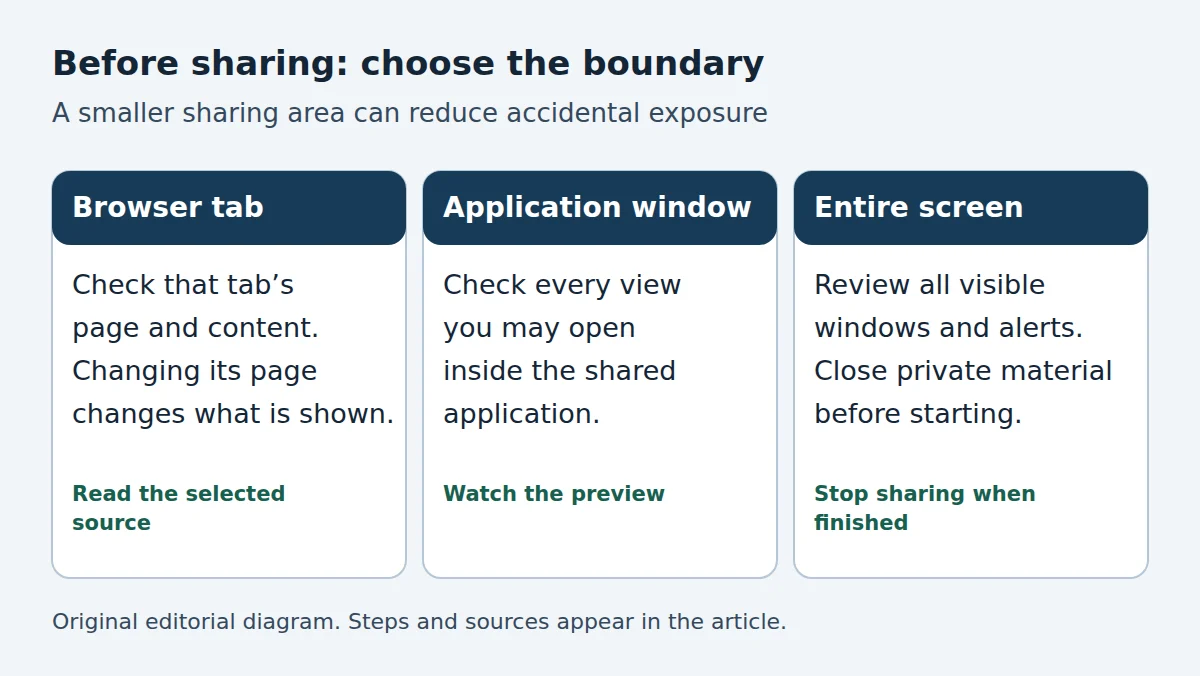
Before sharing your screen in adult chat, choose the smallest area that serves your purpose, inspect the preview, and locate Stop sharing. A browser tab, application window and entire screen expose different material. Decline the request if you do not want to share or cannot establish the boundary.
This November checklist is a practical preparation exercise for adults, not a report of a new platform feature or rising demand. Availability depends on the service, browser and device. We have not tested a provider’s screen-sharing implementation, and nothing here implies that every adult-chat service offers it.
Screen sharing is a separate decision from using a webcam
A webcam shows a camera view; screen sharing sends selected display content. Neither permission should be treated as an obligation to grant the other. If a conversation works through ordinary text, you can keep it that way. Our text chat versus video chat guide helps separate the formats before you choose a feature.
MDN’s screen-capture permission reference explains that supported browser screen capture asks the user to select a source and grant permission. It also says that permission cannot be saved for reuse through this API. Treat a new selection prompt as a fresh decision, not a routine step to click through.
Read the request in your own browser. A message saying “share this” does not identify what your device will transmit. If the controls are unfamiliar, cancel and read the service’s official help before continuing. Do not install an unsolicited extension or remote-access tool to satisfy a chat participant’s request.
Compare the three boundaries
MDN’s screen-capture guide describes browser tabs, windows and monitors as different possible sharing surfaces. The choices offered and their behavior vary. Use those categories to ask a concrete question: what can change inside the area I selected?
| Selection | Inspect before sharing | While sharing |
|---|---|---|
| Browser tab | The selected tab’s current page and content | Check what happens before navigating that tab elsewhere |
| Application window | The chosen application’s visible content | Watch which documents or views you open inside it |
| Entire screen | Visible windows, desktop material and alerts | Avoid opening unrelated private material; stop before changing tasks |
The smaller choice can reduce accidental exposure, but it does not make its contents anonymous or impossible to record. A single tab may still contain a name, account balance, message or identifying document. Judge the content inside the boundary as carefully as the boundary itself.
Prepare a harmless view before opening the selector
Decide exactly what you intend to show, then put only that material in the chosen view. Close unrelated documents and private conversations. If an account name or email is visible, decide whether you are comfortable disclosing it; do not rely on remembering to cover it after sharing starts.
For an ordinary demonstration, a blank document or non-sensitive sample is preferable to a real inbox or account dashboard. This is our suggested rehearsal method, not a claim about how a provider protects your information. If your purpose would require exposing details you want to keep private, choose a different way to explain the point.
Review notifications before starting. Their display and capture behavior depend on your setup, so avoid assuming that a banner outside your current focus stays outside a shared view. MDN identifies unintended disclosure, including other windows or a visible password manager, as a screen-sharing risk. Closing sensitive material is more dependable than hoping it will remain obscured.
Read the audio choice independently
Check for a separate option to share audio. MDN notes that captured audio support and sources depend on browser and selected surface, and requested audio may not be present. Do not assume that muting the microphone answers whether tab or system audio is being sent.
Ask what sound you actually intend to share. Keep unrelated calls, voice messages and private media closed. If a preview or official explanation does not establish the audio route, leave that option off or decline screen sharing. The goal is a boundary you understand, not enabling every available control.
Watch the preview and stop before switching tasks
After selecting a source, inspect any available preview and sharing indicator. Confirm the source name rather than relying only on the picture’s general appearance. Keep the stop control reachable. If you need to open email, a password manager or another private task, stop sharing first and confirm that capture has ended before proceeding.
Do not treat a black or frozen preview as proof that transmission has stopped. Use the browser or service’s explicit stop action and check its status. If you cannot understand the control or the connection behaves unexpectedly, leave the interaction and follow the service’s documented exit instructions.
A smaller view cannot guarantee a temporary audience
The Australian eSafety Commissioner’s screen-capture guidance, updated 10 September 2026, explains that somebody who sees online content may capture it without the sender knowing. That warning is a reason to choose what you reveal carefully; it is not evidence that any person in your chat has recorded you.
Ask permission before displaying another person’s messages or images, and respect a refusal to share. If somebody pressures you to reveal accounts, make a payment or continue after you decline, stop the interaction. Our mute, block and reporting guide explains how to find the relevant platform controls without sending private material to an editorial contact.
A quick check before you start
- Choose whether sharing is necessary and acceptable to you.
- Prepare only the non-sensitive material you intend to show.
- Read the selected tab, window or screen name.
- Review audio separately and inspect the preview if available.
- Locate Stop sharing and stop before opening an unrelated task.
You can cancel at any point before starting or decline the feature altogether. Keep our anonymous webcam chat privacy limits in mind too: a reassuring label does not establish what your particular view contains. A clear, comfortable boundary is a better reason to proceed than a request to share quickly.